How to Connect a PS4 Controller to a Windows 10/11 PC via Bluetooth
Before You Start
Make sure the following requirements are met before pairing your controller:
- Your computer is running Windows 10 or Windows 11.
- Your PC has Bluetooth capability (built-in or via a Bluetooth USB adapter).
- The controller is fully charged.
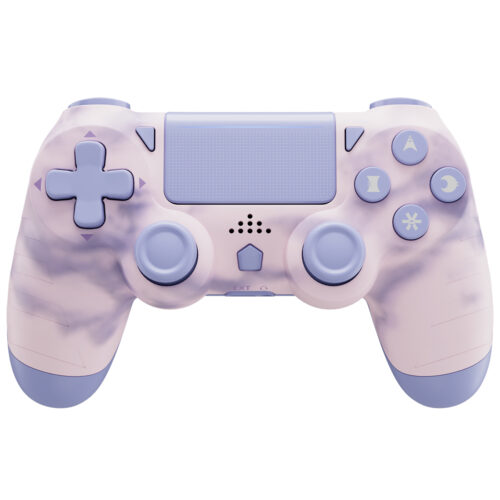
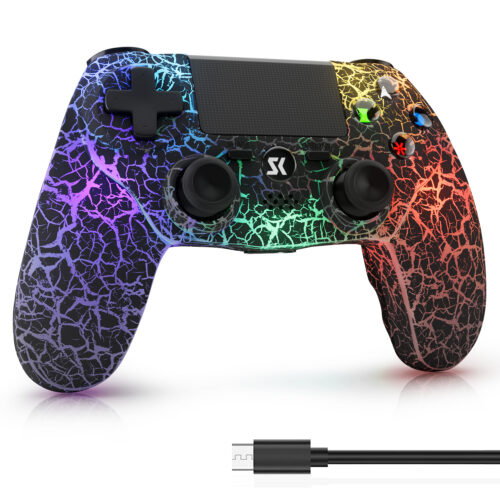
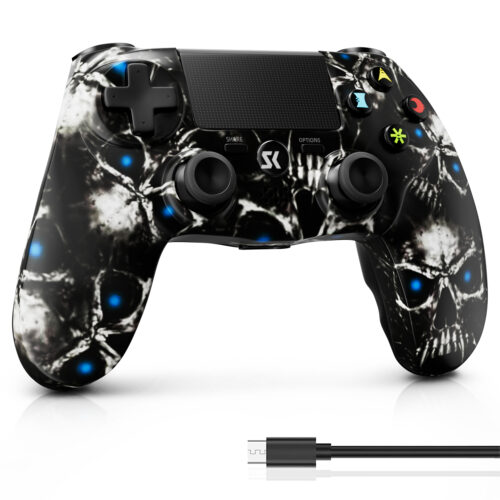
- The model is ISHAKO / SAKO Wireless PS4 Controller or a compatible version.
💡 Tip: If your computer doesn’t have Bluetooth, use a Bluetooth 4.0 (or higher) USB adapter for a more stable connection.
Put the Controller into Pairing Mode
- Make sure the controller is turned off (no LED lights).
- Press and hold the “Share” button and the “Home (PS)” button together for about 3 seconds.
- The LED light bar will start flashing rapidly (usually white or blue), which means the controller is now in Bluetooth pairing mode.
Pair on Windows 10 / 11
🔹 Windows 10
Open the Start Menu → Settings.
Click Devices → Bluetooth & other devices.
Turn on Bluetooth and click Add Bluetooth or other device.
Select Bluetooth from the list.
Find “Wireless Controller” or “DualShock 4 Controller”, then click Connect.
🔹 Windows 11
Open Settings → Bluetooth & Devices.
Click Add Device → Bluetooth.
Choose “Wireless Controller” from the list.
Once connected, the LED light will stay solid (usually blue or pink).
✅ Note: After the initial pairing, briefly pressing the controller’s Home button for 2 seconds the next time will automatically reconnect the controller; the above steps do not need to be repeated.
Test the Controller
Normally, if you have Steam open, Steam will default to using this controller instead of the keyboard for input. If you need to test button or joystick functionality, please visit: Gamepad Tester↗
💬 If your game doesn’t detect the controller, check your controller settings in Steam or your preferred gaming platform.
Troubleshooting Guide
| Issue | Solution |
|---|---|
| Controller not showing up in Bluetooth list | Make sure your Bluetooth adapter supports the HID protocol and re-enter pairing mode. |
| Connected but not working in games | In Steam, enable PlayStation Configuration Support under Controller Settings. |
| LED keeps flashing and won’t stay lit | Delete the device and re-pair it from the Bluetooth list. |
| Lag or disconnecting issues | Please ensure the controller has sufficient power and turn off high-power Bluetooth devices around the PC |
Optional: Connect via USB Cable
If Bluetooth isn’t available or stable, you can connect directly with a USB cable:
- Plug the controller into your PC using the included USB cable.
- Windows will automatically install the required drivers.
- The LED light will stay on once the connection is successful.
This is also the best way to play without latency or to charge the controller while gaming.
PS4 controller for PC
-
Sale!
Upgraded USB C PS4 Controller: Reliable Wireless Gamepad for PC & Mobile
$17.99 – $21.99Price range: $17.99 through $21.99 Select options This product has multiple variants. The options may be chosen on the product page -
Sale!
Best RGB PS4 Controller: Stunning Light Up Wireless Controller for PC & Mobile
$29.99Original price was: $29.99.$24.99Current price is: $24.99. Select options This product has multiple variants. The options may be chosen on the product page -
Sale!
Wireless Controller for PS4 – Diamond
$19.99Original price was: $19.99.$15.99Current price is: $15.99. Select options This product has multiple variants. The options may be chosen on the product page -
Sale!
ISHAKO Wireless Controller for PS4 – Ghost Style
$27.99Original price was: $27.99.$23.99Current price is: $23.99. Add to cart