
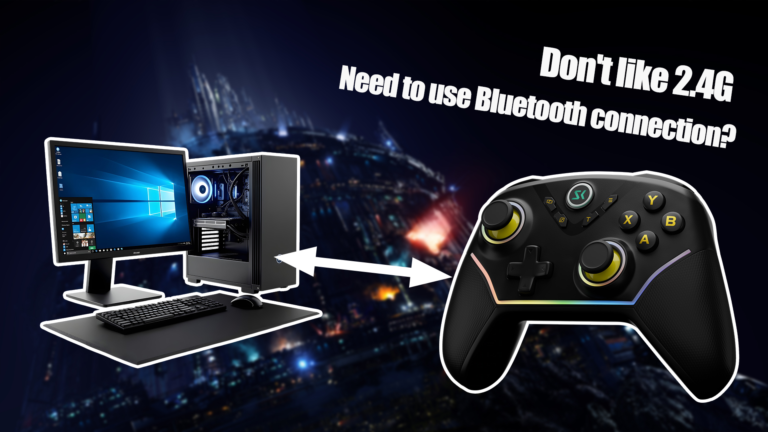
How to Connect the ISHAKO AG43 Master2 Controller via Bluetooth
The ISHAKO AG43 Master2 is a next-generation wireless game controller designed for multi-platform compatibility.
It supports Windows 10/11, macOS, iPhone (iOS), Android phones/tablets, Smart TV, Amazon Fire TV, Tesla, Luna, and Steam Deck.
Whether you’re gaming on your laptop, TV, or even in your car, the AG43 delivers the same smooth and responsive performance as a premium pc gaming controller.
Enter Bluetooth Pairing Mode
Before pairing, make sure the controller is powered off (the Home button light should be off).
- Press and hold the rear “BT” button for about 5 seconds.
- The Home button will start flashing rapidly, indicating that the controller is now in Bluetooth pairing mode.
- Once flashing, the controller is ready to connect with any supported device.
💡 Tip: If the Home light doesn’t flash, release and hold the BT button again for 5 seconds until it does.

💻 Pairing with Windows 10 / 11
- Open Settings → Bluetooth & devices.
- Turn on Bluetooth.
- Click Add device → Bluetooth.
- Press and hold the controller rear “BT” button for about 5 seconds.
- Select “Xbox Wireless Controller” from the list.
- Once connected, the Home button light will stay solid.
ISHAKO Master Controller 2 – AG43 is now ready to use as a pc controller or pc gaming controller in any supported game or launcher, including Steam, Epic Games, and Gamepass on PC.
🍎 Pairing with macOS
- Go to System Settings → Bluetooth.
- Turn on Bluetooth.
- Press and hold the controller rear “BT” button for about 5 seconds.
- Wait for “Xbox Wireless Controller” to appear and click Connect.
- Once paired, the Home button will remain solid.
The controller will automatically reconnect next time you turn it on, making it perfect for Mac gaming or emulator setups.
📱 Pairing with iPhone or Android
🔹 For iPhone / iPad (iOS 13 or later)
- Open Settings → Bluetooth.
- Turn on Bluetooth.
- Press and hold the controller rear “BT” button for about 5 seconds.
- Find and tap “Xbox Wireless Controller”.
When connected, the Home button stays on — ready for mobile gaming.
🔹 For Android Devices
- Open Settings → Bluetooth → Pair new device.
- Press and hold the controller rear “BT” button for about 5 seconds.
- Select “Xbox Wireless Controller” from the available devices.
- Confirm pairing when prompted.
Now you can use your wireless controller for cloud gaming, emulators, or mobile titles.
📺 Pairing with Smart TV / Fire TV
On your Smart TV or Fire TV, open Settings → Controllers & Bluetooth Devices → Game Controllers.
- Choose Add New Game Controller.
- Press and hold the controller rear “BT” button for about 5 seconds.
- Select “Wireless Controller” from the list.
- Once paired, the Home button light stays solid.
Enjoy your favorite games and streaming apps using the ISHAKO wireless game controller right on your TV.
🚗 Pairing with Tesla
- On your Tesla touchscreen, go to Controls → Bluetooth → Add New Device.
- Put the AG43 in pairing mode (hold BT button on controller back for 5 seconds).
- Tap “Wireless Controller” to pair.
You can now use your gaming controller to play built-in Tesla Arcade titles during charging or rest stops
🕹️ Pairing with Luna or Steam Deck
🔸 Amazon Luna
- On your Luna device, open Settings → Controllers → Add Bluetooth Controller.
- Hold the BT button on controller back until the Home light flashes.
- Select “Wireless Controller” to connect.
🔸 Steam Deck
- From the main menu, open Settings → Bluetooth.
- Press and hold the controller rear “BT” button for about 5 seconds.
- Turn Bluetooth on and select Wireless Controller”.
Connection Tips & Troubleshooting
| Issue | Solution |
|---|---|
| The controller won’t appear on the device list | Re-enter pairing mode by holding the BT button for 5 seconds until the Home light flashes. |
| The light keeps flashing and won’t connect | Delete the old Bluetooth pairing from your device and try reconnecting. |
| Lag or disconnection | Move closer to the device and make sure no other Bluetooth accessories are interfering. |
| Can’t connect to multiple devices | In Bluetooth mode, the AG43 can only pair with one Bluetooth device at a time. |
🔋 Charging and Power Tips
Use the included USB-C cable to charge your controller.
A full charge takes about 2 hours and provides up to 20 hours of gameplay.
While charging, you can still use it as a wired game controller on PC or laptop.