

Product Details

Technical Specifications
| Product Name | S-AG46 |
|---|---|
| Battery Capacity | 800mAh |
| Support System | Windows (7/8.1/10/11) 64bit Android 8.0 above iOS 13 above |
| Support Console | Switch/OLED/Lite, Switch2, Smart/Fire TV, Amazon Luna, Tesla Arcade, Steam Deck |
| Trigger | Hall Effect triggers |
| Joystick | Hall Effect Stick |
| Paddles | 2-Macro back buttons |
| Controller size | - Length: 150 mm / 5.9 inch - Height: 105 mm / 4.1 inch - Width: 55 mm / 2.2 inch |
| Controller weight | 208g / 0.45 lb |
| USB Cable | 0.8 m / 2.6 ft USB C to USB A |
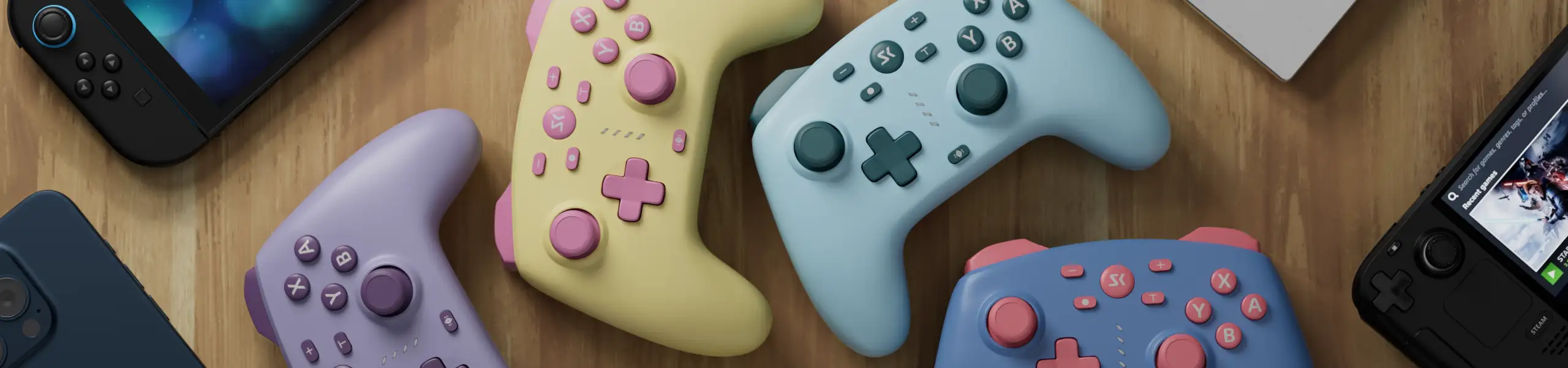
| Color | Yellow Blue Tiffany Purple |
Connect Devices
| Connection Methods | Model | Combination keys | Compatible |
|---|---|---|---|
| Bluetooth | Switch | “X”+“Home” | Switch/PC/Android/iOS |
| X-input | “Y”+“Home” | PC/Android/iOS | |
| D-input | “A”+“Home” | PC/Android/iOS | |
| 2.4G/Wired | Switch | "B"+"Home" | PC/Android |
| X-input | After connecting, press"-"+"+" to toggle | PC | |
| D-input | After connecting, press"-"+"+" to toggle | Android |
Switch the buttons layout of the controller
Since the key markings on the controller surface are inconsistent in each different system/game, we provide electronic switching functionality as shown in the following figure. The default layout is switch layout.
After the controller successfully connects the device, press “X” + “Y” + “HOME” simultaneously for 2 seconds. The controller will vibrate in 0.5 seconds. Built-in memory function – able to record whether the last layout changes
Vibration Adjustment Function
The controller needs to hold down the vibration button when it is connected, and then click “up”/”down” of the Direction keys to increase/reduce the vibration intensity of the controller. After the adjustment is completed, the current vibration intensity will vibrate for 0.5 seconds to prompt you to complete the setting.
The intensity of the controller is divided into 5 levels, namely: 0%, 25%, 50%, 75%, and 100%. The default vibration intensity is 50%
Joystick/Trigger Calibration Function
Press “+” + “Home” for 2 seconds to enter calibration. Indicator LED1234 flashes slowly. Rocker rotates more than 3 full revolutions. Press the left and right triggers 3 times. Finally, press the “+” + “Home” keys (once). Indicator LED1234 blinks 3 times to complete calibrating the joystick. If calibration fails, it will simply exit calibration mode. Repeat the above steps until calibration is successful. After reset, the auto calibration function is activated.
M1/M2 Macro Button Setup
1. While press hold M1 or M2 and press the “T” button at the same time, the controller will vibrate once.
2. Press the action keys to be programmed, such as the left stick (up, down, left, right), the direction key (up, down, left, left, right), ABXY, LB\RB\LT\RT\L3\R3 to enter.
3. Sequence recording is supported to restore your proprietary combination of skills.
4. After editing is complete, press M1/M2 and motor vibration completes the programming.
5. Press M1 or M2 button at the same time, then press and hold the “T” button, at this time, the motor vibration enters the programming state, press the M1 or M2 button again to clear the programming of the macro keys; clearing completes the motor vibration feedback.
Turbo Function
Turbo continuous shot function is divided into 2 different modes: manual-turbo, auto-turbo. Manual-turbo: Keeping the settings button pressed will keep triggering the function. Auto-turbo: Pressing the Set button once will always trigger the function and pressing it again will pause it.
There are 3-levels of continuous shot speed: 5/s, 10/s, 20/s
The keys of Turbo can be set as: A, B, X, Y, LB, RB, LT, RT
Setting method: 1. Press and hold “T” + “Keys of Turbo” to start the manual-turbo, the controller will vibrate once.
2. When the first setup is completed, press and hold “T” + “Keys of Turbo” again to enable the auto-turbo function. The controller will vibrate once.
3. When the second turbocharge setting is complete, press “T” + “Keys of Turbo” again to turn off the turbo function. The controller will vibrate once.
Adjust Turbo strength level: After the controller has completed the connection, press and hold “T” + “Direction left/right”. Direction left button represents decreases, and right button represents increase. Each time the controller increases/decreases, the controller will vibrate and remind.
Press the “T” button for 5 seconds to clear the Turbo function, and the clear will be successfully accompanied by vibration feedback.
How do I stop/start the controller?
Start Controller
Press and hold the “Home” button for 2 seconds to activate the controller. The LED will flash slowly and automatically connect to the last connected device. Upon successful connection, the controller will vibrate once.
If no device is connected, the controller will automatically shut down after 2 minutes. While in the connected state / with the LEDs permanently lit, the controller will automatically go to sleep if no operation is performed for 10 minutes.
Stop Controller
While the controller LED is blinking/connected, press and hold the “Home” button for more than 5 seconds to turn off the controller.
Why does a 2.4G connection sometimes experience disconnections or delays?
The AG46 receiver uses high-frequency wireless communication. To maintain consistent timing accuracy, decoding stability, and dual-controller support, the receiver requires stable 5V power delivery. Even small voltage dips (e.g., 5.0V → 4.7V) can impact signal quality or introduce jitter.
Non-powered USB hubs often distribute a single USB port’s power across multiple devices. When keyboards, RGB accessories, hard drives, or webcams draw power simultaneously, the receiver may not receive sufficient current, leading to misinterpreted signals, range reduction, or polling instability.
For optimal stability, we recommend connecting the receiver to a rear port or powered hub.
How do I connect the AG43 to Tesla via Bluetooth or 2.4G receiver?
To using the Bluetooth:
1. Turn off the controller.
2. Press and hold the BT button on the back of the controller for 5 seconds, until the Home indicator light flashes rapidly.
3. In Tesla Arcade, turn on Bluetooth.
4. Select the game controller to pair.
To using the 2.4G receiver:
1. Turn off the controller.
2. Insert the 2.4G receiver into the USB port.
3. Press and hold the pairing port on the 2.4G receiver for 5 seconds until the indicator light flashes rapidly.
4. Press and hold the NS/2.4G button on the back of the controller until the home button on the controller flashes rapidly.
5. They will pair automatically, and you can then open Arcade for device management.
How do I reset the controller?
a. If the controller malfunctions or becomes unresponsive during operation, you can reset it.
b. Insert a paperclip into the RESET hole on the back of the controller until you press the reset switch and hear a “click”. The controller will power off, indicating a successful reset.
c. Reset using the “KeyLinker” app. When the device name “KeyLinkerBLE-Y318” appears on the “KeyLinker” app screen on your phone, tap the device name to enter connection mode.
Additionally, if the firmware upgrade fails, you can also perform a RESET operation to reset and try again. The RESET operation will not delete various settings in the controller (macro programming/vibration level).