Product Details

Technical Specifications

Product NameS-PS415LW
Support SystemWindows (7/8.1/10/11) 64bit
Android 8.0 above
iOS 13 above
Support ConsolePS4/Pro/Slim, PS3, Smart TV
Battery Capacity1000mAh
TriggerAnalog triggers
JoystickAnalog Stick
Controller size- Length: 150 mm / 5.9 inch
- Height: 95 mm / 3.7 inch
- Width: 60 mm / 2.4 inch
Controller weight300g / 0.66 lb
USB Cable0.8 m / 2.6 ft USB micro to USB A
ColorBlack
White

Connect Devices

Connection MethodsCombination keysLED indicatorBT Name
PS3/PS4When you use it for the first time, please use the USB cable to connect to the console.LED Always On
Android System“SHARE”+“HOME”Top LED fast double blinkDUALSHOCK 4 Wireless Controller
iOS System“SHARE”+“HOME”Top LED fast double blinkDUALSHOCK 4 Wireless Controller
PC Windows - Wireless“SHARE”+“HOME”Top LED fast double blinkWireless Controller
PC Windows - WiredUsing Micro-USB cableLED Always On

Generally, this problem occurs in only two situations (pls update your PS4 system to the latest version first)

– There have other controller connected to the PS4 system but not in the user page.
– Other controllers will occupy the pairing quota of the new controller, so pairing and activation operations cannot be performed. (Only when not entering PS4 home)

In this case, you will need to disconnect the other controllers first and restart the PS4 Console so that the system will clear the connection information. Then, you can perform a new pairing process using the USB cable.

– After connecting the cable, pressing the home button does not activate the controller and console
– This situation usually occurs when you press the home button without connecting the cable, and then connect the cable. At this time, the PS4 console will not be paired when it is turned on, so pairing cannot be successful.

In this case, please remove the USB cable first, then press and hold the Home button of the controller for more than 8 seconds, turn off the controller, then plug in the USB cable and click the Home button again until the PS4 console recognizes and pairs the controller.

When you encounter the problem of disconnection/unrecognition caused by the PS4 Console system prompting that the controller cannot be recognized/unofficial controller, you can use our simple tool to upgrade the controller program.
You need to use PC Windows x64 to download the controller upgrade program:

– Press and hold the “SHARE” + “Home” buttons on the controller for more than 5 seconds.
– The top LED bar will flash 2 flashes rapidly in white.
– Open the list of connected Bluetooth devices.
– Select the controller device to connect.

Yes, this controller can connect to the PS5 console and uses Bluetooth. However, please note that it does not support playing PS5 games; it can only play PS4 games that run on the PS5 console.

The controller has a memory function. Press and hold the Home button for 2 seconds to enter automatic pairing, giving priority to connecting to the last connected device.

If it is not connected to any device within 20 seconds, the controller will shut down.

If you need to pair to a new device, please use the pairing function: press and hold the “SHARE” + “Home” button for 5 seconds, the top LED will flash quickly, and you can see the Bluetooth name of the controller on the device to be connected. Click to connect the controller.

If you find that the microphone does not work when you connect headphones to the controller, please set it up on the PS4 console.
Specific setting path: Settings in PS4 system -> Devices -> Audio Devices -> Output to Headphones -> All Audio

If the problem still occurs, please re-pair the controller: remove all Bluetooth devices in the PS4 system, restart the PS4 Console, use a USB cable to pair the controller with the PS4 console, and set the Audio device to headphones again after pairing is completed.

Please note: Third-party headsets compatible with the PS4 Console, such as those manufactured by T*** Beach, are not supported.

On the back of the controller, below the L2 trigger, there is an initialization button. You need to insert a small stick with the controller connected/powered on and press the button for more than 8 seconds in order for the controller to initialize.

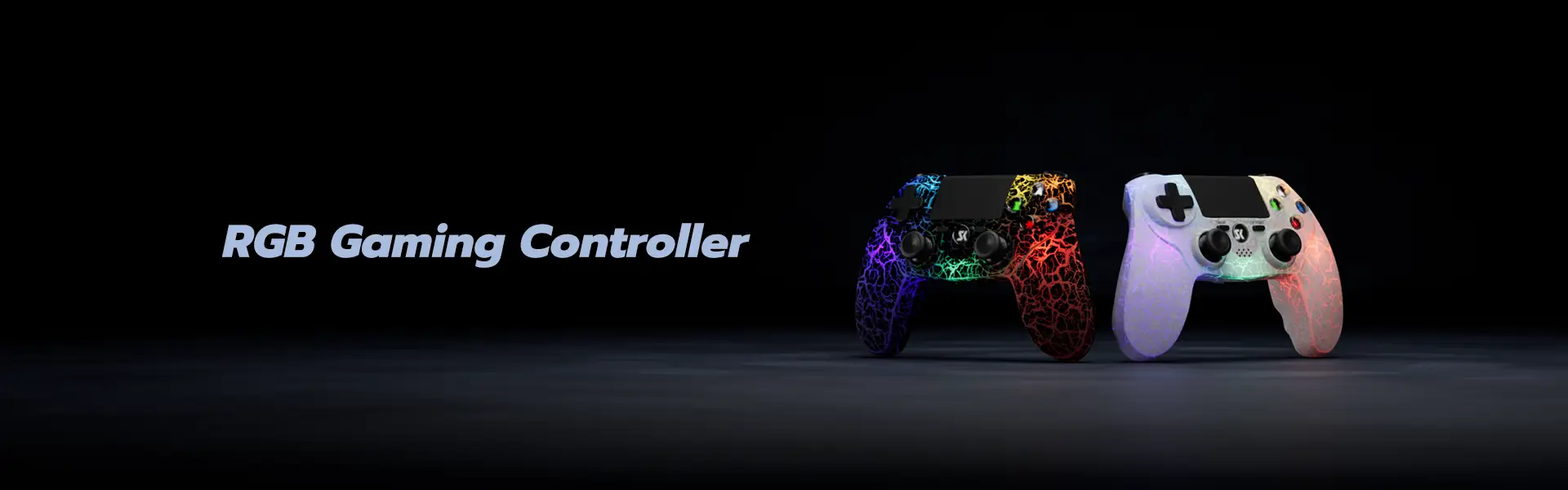
Press “SHARE” and “OPTlONS” click to change mode; RGB Lighting modes are divided into four types:

– 7-Color gradient mode: By red-orange-yellow-green-cyan-blue-violet different light gradient
– 7-Color breathing mode: By green-red-yellow-cyan-pink-blue-violet circular breathing
– Blinking mode: By green – red – yellow – green – pink – blue – purple single light flashing back and forth jumping
– Single-color constant light mode: Consists of green-red-yellow-cyan-pink-blue-violet, in single color constant, Press and hold SHARE + right stick to adjust the color up and down in the single-color constant light mode.

Press and hold the “SHARE” and “OPTlONS” buttons for 5 seconds to turn off turn off the light effect.

Upgrade Controller

If you encounter an inability to connect to your PS4 console or a system message indicating a non-official controller.

Upgrade program usage instructions:

  1. Download and extract the zip file on Windows to obtain the .exe file.
  2. Connect the controller to your Windows PC using a USB cable. Please use the USB port on your PC motherboard; do not use a passive docking station.
  3. Open the .exe program and click “Upgrade”.
  4. The program will automatically recognize the controller and complete the upgrade.