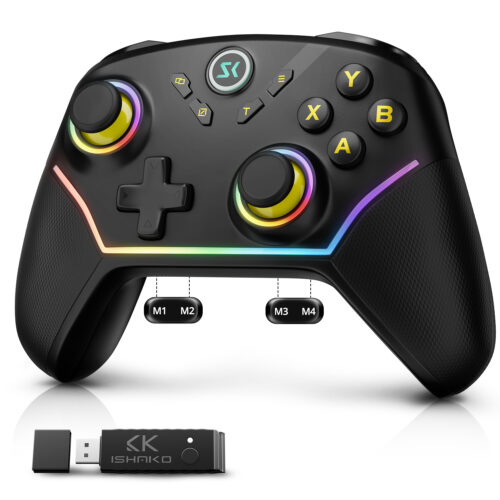
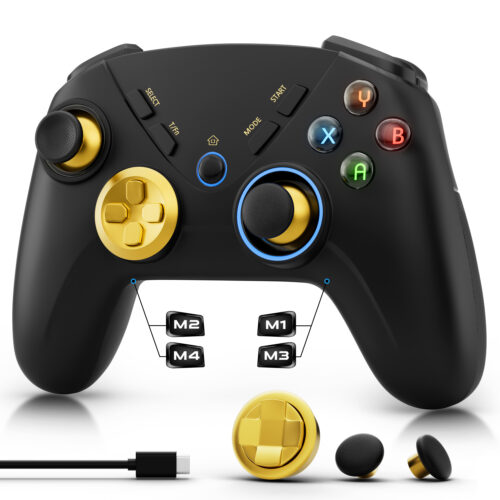
Why Firmware Updates Matter for Nintendo Switch 2
When a new console generation launches, the underlying wireless communication protocols change. This is why many older or budget-friendly third-party controllers work perfectly for basic gameplay, but fail to trigger OS-level features like the proximity wake-up call.
A Switch controller firmware update fixes this. By flashing the correct software, you are essentially teaching the controller’s hardware how to speak the new console’s wireless language.
Core components for driver updates
Before beginning the update process, ensure you have gathered the following essential tools:
- The Controller: ISHAKO AG46 wireless controller
- A Windows PC: The official ISHAKO flashing utility runs exclusively on Windows.
- A High-Quality USB-C Cable: You can use the USB-C cable included in the controller’s packaging.
- The Official AG46 Firmware Package: Please download the attachment at the bottom of the article or visit the support page ↗ for the AG46 controller
Step-by-Step Tutorial: How to Flash Your AG46 Controller
Follow these precise steps to execute the hardware boot sequence and map the next-gen protocol.
Step 1: Trigger the Hardware DFU Mode (Bootloader)
You cannot just plug your controller into your PC normally. To allow the upgrade program to overwrite the chipset, you must force it into Device Firmware Update (DFU) mode:
- Ensure the controller is completely powered off
- Press and hold down the Left joystick vertically (activating the L3 button click)
- While keeping the L3 button firmly pressed down, connect the USB-C cable to your Windows PC
Step 2: Run the AG46 Upgrade Program
Launch the firmware upgrade software (.exe) on your Windows PC.
- The software should immediately detect the controller interface. If the “Upgrade” button remains greyed out, disconnect the cable and retry Step 1, making sure the L3 button is fully pressed while plugging it in
- Click the “Upgrade” button
- Keep the controller perfectly still and wait for the progress bar to reach 100%. Do not unplug the cable during this process
Step 3: The Critical Switch 2 Handshake (The 20-Second Rule)
Once the software confirms the flash is successful, unplug the controller from your PC. Now, you must perform a specific hardware handshake sequence to finalize the wake-up token assignment on the console side:
- Turn on your Switch 2 console manually via its physical power button
- Go to the “Controllers” -> “Change Grip/Order” menu on the screen and pair your AG46 controller normally
- The Most Crucial Step: Within 20 seconds of successful pairing, you must completely slide off and remove the original Nintendo Joy-Cons from the console sides
By removing the Joy-Cons during this short 20-second window, you force the Switch 2 operating system to assign the primary hardware wake-up token to your newly updated controller. Once this handshake is completed, the upgrade process is fully finalized!
⚠️ Important Note:
If you fail to detach the Joy-Cons from the Switch 2 console within 20 seconds of a successful connection, the AG46 will be unable to activate the wake-up function; in this case, you will need to perform a driver rollback (please contact our online customer support).
Testing the One-Key Wake Up Capability
Now that the new firmware and hardware handshake are complete, your controller enjoys full next-gen system permissions.
To test your new feature:
Turn off your console or put it into Sleep Mode
Simply tap the Home Button on your AG46 controller once
The controller’s status LEDs will flash, send the newly unlocked wake-up signal, and your Switch 2 will instantly boot up from sleep mode, delivering a premium, seamless gaming experience from your couch.
Troubleshooting & Quick Tips
Controller Not Detected by PC:
Double-check your cable. Many charging cables lack the internal data wires needed for firmware flashing. Make sure it is a true USB data cable.
Unable to click “Upgrade” after connecting to the PC:
Please ensure you hold down the L3 button before connecting to the PC; while holding the L3 button, insert the USB-C cable to complete the connection to Windows.
Wake-Up Function Fails to Trigger:
Please contact our online customer service immediately for assistance.
ISHAKO AG46 Connection Method


 Sale!
Sale!