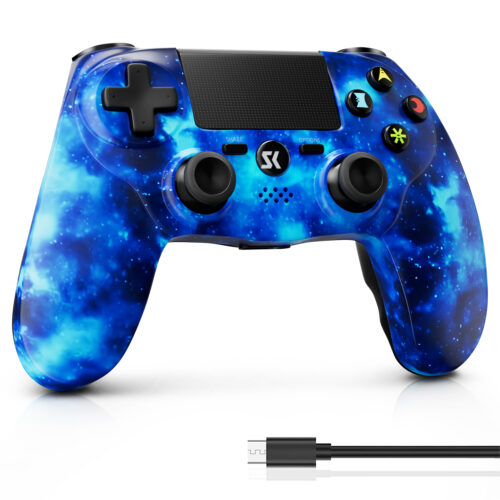
PS4 Controller Won't Connect? 5 Easy Fixes & Reset Guide
Nothing kills the gaming mood faster than when you press the PS button, the light bar flashes white, and then… nothing. The console stays silent, and your controller turns off.
If your PS4 controller won’t connect to the console, you aren’t alone. While many guides suggest checking your USB cable, the real culprit is often invisible: System Cache and Bluetooth Device Overload.
In this guide, we will explain why the PS4 system fails to recognize your device and provide a step-by-step fix, including exclusive troubleshooting for ISHAKO and ISHAKO RGB controllers.
Why Your PS4 Controller Won't Connect (The Hidden Reason)
Most connection failures aren’t caused by broken hardware, but by a software glitch in the console’s memory.
Your PS4 console stores a specific number of Bluetooth profiles. Over time, as you sync different controllers, headphones, or remotes, this list gets crowded. When the console’s system cache is full or corrupted, it cannot clear old device signatures to make room for a new connection (even if it’s the same controller you used yesterday).
Essentially, your PS4 is “confused” about which device is trying to talk to it, leading to the dreaded flashing white light issue.
Basic Fixes: Updates and Bluetooth Cleanup
Before performing a full reset, try these two standard software solutions to help your system recognize the controller again.
1. Update System Software
If your PS4 controller won’t connect, it might be due to a firmware mismatch.
Use a working controller (or a USB keyboard) to navigate to Settings.
Select System Software Update.
Install any pending updates and restart the console.
2. Clear Forgotten Bluetooth Devices
If an update doesn’t work, you need to manually help the console clear its memory.
Go to Settings > Devices > Bluetooth Devices.
You will see a list of all controllers ever paired.
Select the controllers that are not currently in use (indicated by a gray icon) and choose Forget Device.
Now, try connecting your problematic controller via USB and press the PS button.
The "Deep Clean" Fix: Clearing Cache & Restarting
If the basic steps failed, your console’s Bluetooth module needs a “Hard Reset” to flush out the cache errors completely. This is the most effective method when a PS4 controller won’t connect despite having a charged battery.
Follow these steps strictly:
Disconnect Everything: Unplug all USB devices from the console.
Forget All Devices: Using a second controller (or remote play app), go to Bluetooth Devices and forget ALL listed controllers, including the one you are currently using.
Power Down Completely: Hold the power button on the console for 7 seconds until it beeps twice. Do not use Rest Mode.
Unplug the Power Cable: Remove the power cord from the back of the PS4 and wait for 5 minutes. (This drains the capacitors and clears the temporary cache).
Reconnect and Sync: Plug the power back in. Connect your controller via a high-quality data USB cable.
Power On: Turn on the console using the button on the console (not the controller). Once on, press the PS button on your controller.
How to Fix ISHAKO Controllers (Standard Models)
If you are using a standard ISHAKO PS4 Controller, the internal Bluetooth chip works identically to the original specification.
If your ISHAKO PS4 controller won’t connect, follow the “Deep Clean” steps above. Additionally, ensure you check the small Reset Button on the back of the controller:
Locate the small hole near the L2 button.
Use a paperclip to press and hold the button for 5 seconds.
Then, connect via USB and perform the pairing process.
Exclusive Fix for ISHAKO RGB Controllers
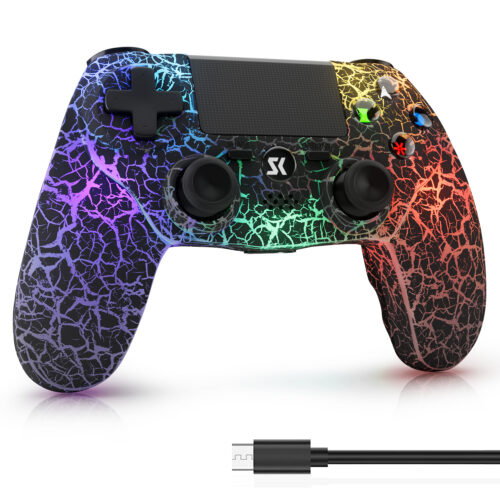
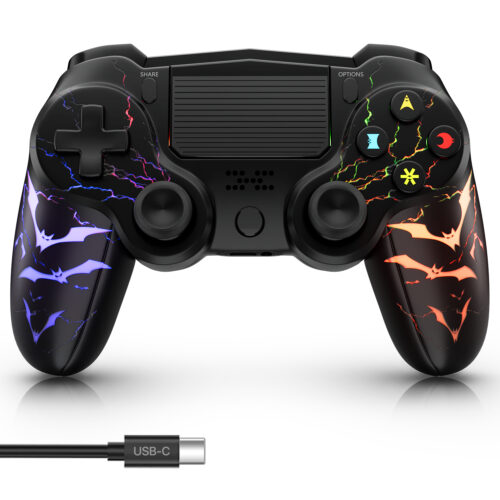
For users of the advanced ISHAKO RGB Controller, there is a specialized hidden forced-pairing mode. This method is unique to the RGB model’s firmware and bypasses standard Bluetooth hurdles.
If your ISHAKO RGB controller is flashing but not connecting, perform this Combo Reset:
Connect via USB: Plug the ISHAKO RGB controller into the console using a data cable.
Input the Command: While the controller is connected, simultaneously press and hold the following four buttons:
Hold for 3-5 Seconds: Keep holding until the controller indicator reacts.
This command forces the controller to send a “New Device” signal to the console, effectively bypassing the corrupted cache and forcing the system to re-identify the controller.
Conclusion
When a PS4 controller won’t connect, it is rarely a sign of a broken device. By understanding how the PS4 manages Bluetooth cache, you can save money on replacements. Whether you are using a stock controller or a feature-rich ISHAKO RGB, clearing the device history and performing a hard reset usually solves the problem instantly.


 Sale!
Sale!